Setting up closed testing correctly is the most critical step for new personal developer accounts on Google Play. Since late 2023, Google requires 12 testers for 14 continuous days before you can even apply for production access. In this guide, we'll walk you through the technical setup to ensure your testers are counted and your application is approved.

Configure Country Availability
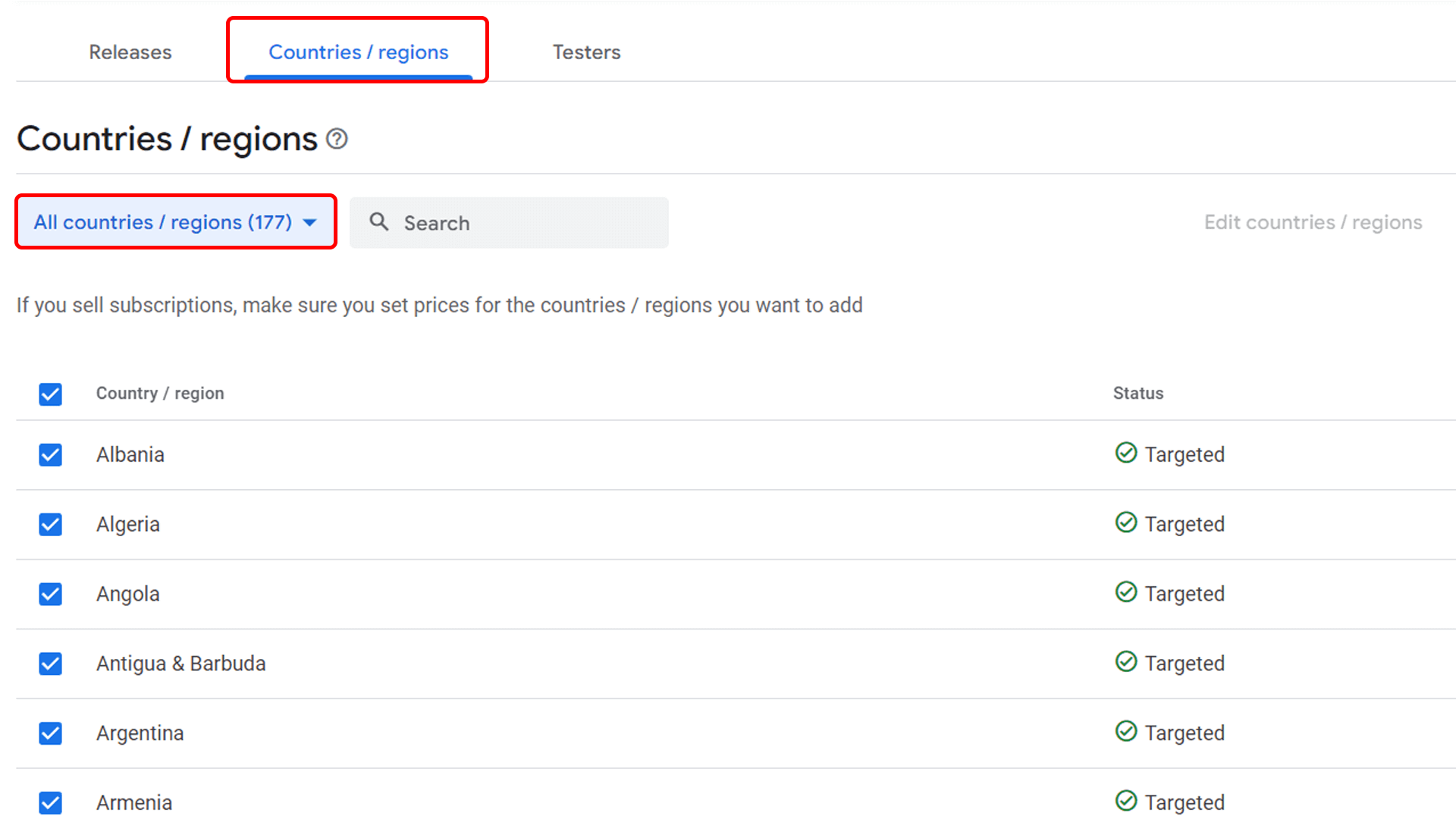
Before adding testers, ensure your app is available in the regions where your testers reside. We strongly recommend selecting All countries/regions to prevent "App not available in your country" errors for your testers.
- Navigate to Production or Testing (Closed Testing).
- Click the Countries/regions tab.
- Select Add countries/regions and check the box for All countries/regions.
- Click Save.
Add Your Testing Group
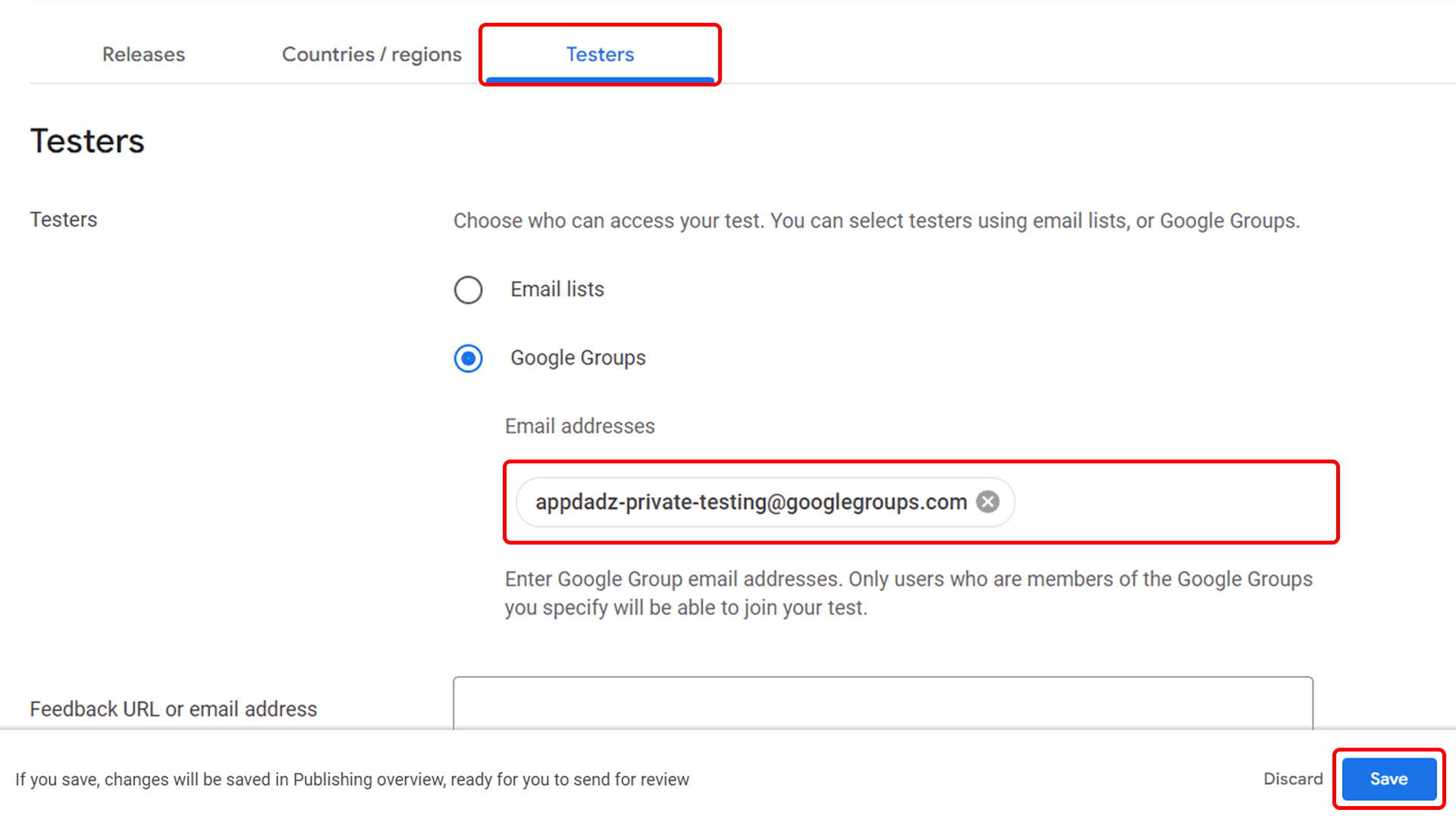
Google Play allows you to manage testers individually or via Google Groups. Using a group is much more efficient and reliable for the 14-day requirement.
If you are using AppDadz., you should add our verified testing group:
AppDadz.-private-testing@googlegroups.com
Go to Test & Release → Testing → Closed Testing, open the Testers section, select Google Groups, and paste the email above.
Create and Submit a Release
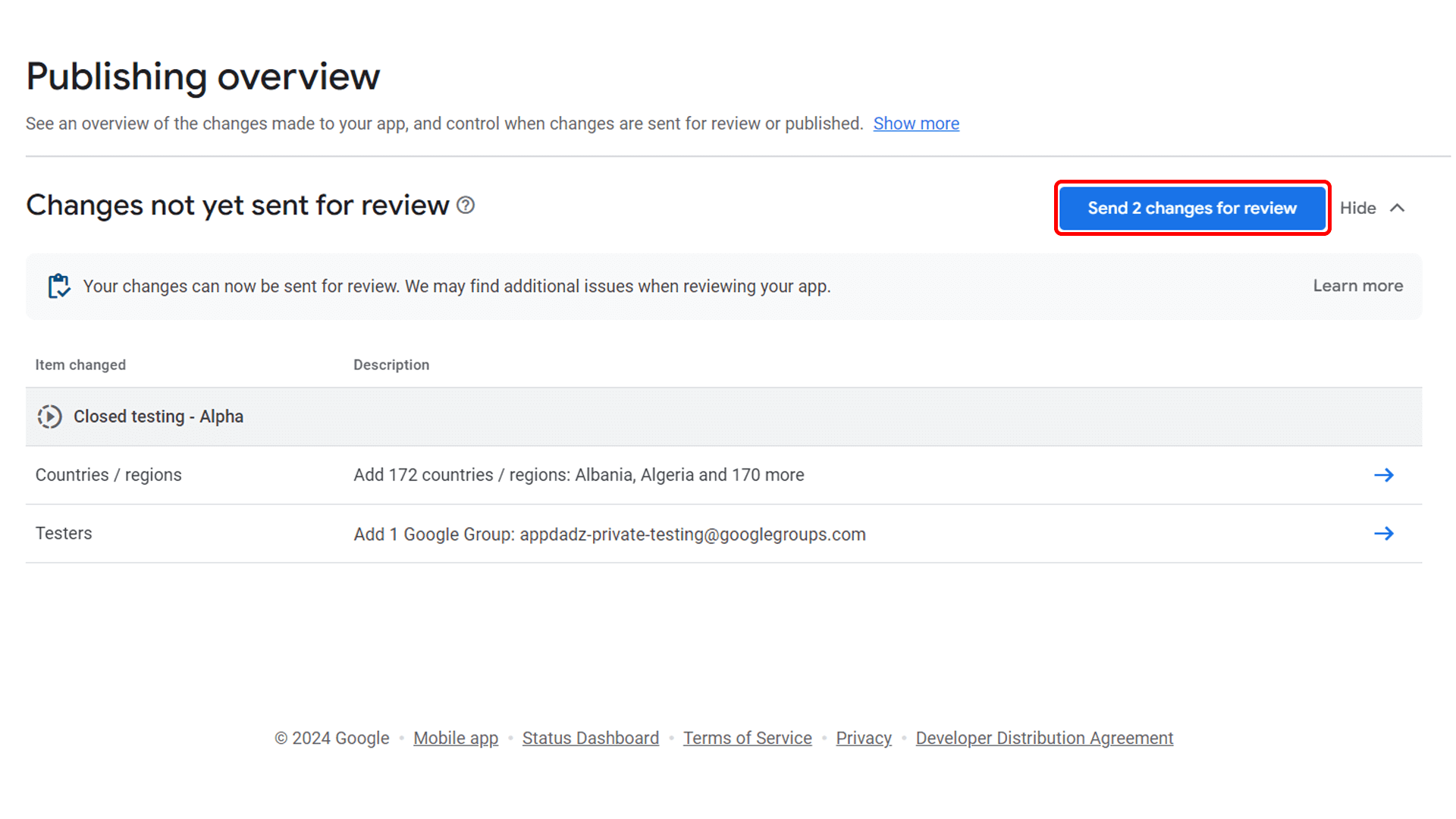
Testers cannot join until your app bundle has passed Google's initial review.
- Go to Closed Testing and click Create new release.
- Upload your
.aab(App Bundle) file. - Provide clear Release notes (e.g., "Initial closed testing release").
- Click Review release and then Start rollout to Closed testing.
Share the Opt-in Link
Once the release status is "Available to testers", you must share the opt-in link. Without clicking "Accept Invitation" on this link, testers won't be counted toward your 12-tester requirement.
- In the Testers tab of your Closed Test, scroll down to the bottom.
- Look for How testers join your test.
- Copy the Join on the web or Join on Android URL.

Monitor Progress & Apply
The Dashboard will show your progress. All 12 testers must remain opted-in for 14 continuous days. If one uninstalls or opts out, the timer might reset.
Once the requirement is met, the "Apply for production" button will become active in your Dashboard.
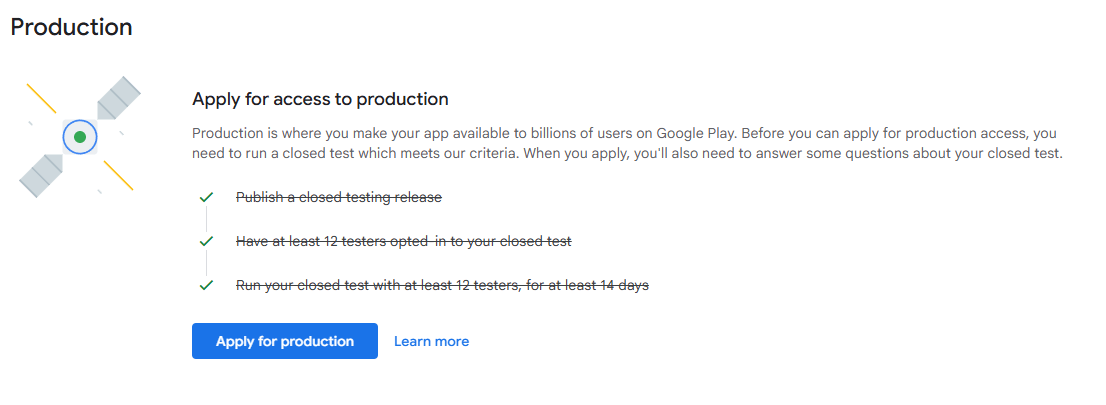
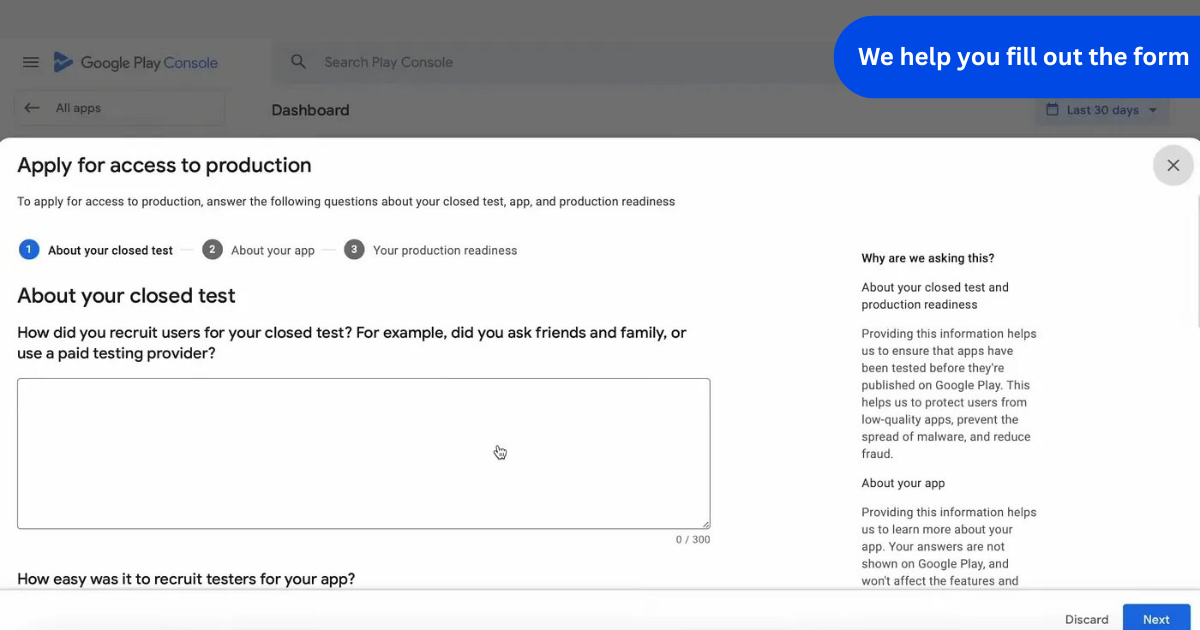
You will then need to answer questions about your testing process. With AppDadz., we provide you with the exact answers you need to pass this stage flawlessly.
Frequently Asked Questions
Ready to Launch Without Stress?
Setting up the console is only half the battle. Finding 12 reliable testers who stay active for 14 days is the real challenge. AppDadz. handles everything for you, providing real devices and real people to guarantee your production access.
Discussion & Feedback
Does the 14-day timer reset if I pause the rollout?
AppDadz. Support: Hi Sarah! Yes, it is highly recommended NOT to pause or halt the rollout. Any interruption to tester access can reset Google's 14-day verification window.
Have a question? Join the discussion!
Our experts usually reply within 2 hours.

This guide saved my app! I was stuck on the 404 error for my tester link and didn't realize I hadn't selected the countries in the correct track. Thanks AppDadz.!