Free Mutual Testing
A community-driven platform where developers support each other through mutual testing contribution.
- ✔ Participation-based credits
- ✔ Over 1,000+ always-active users
- ✔ Mutual understanding platform
- ✔ Top contributors get bonus engagement
- ℹ Success depends on daily engagement
Private Testing Plan
A professional, fully managed testing service designed specifically for Google Play approval.
- ✔ 100% Production Access Guarantee
- ✔ Continuous testing until app goes live
- ✔ 24/7 Professional developer support
- ✔ Standard 14-day compliance testing
- ✔ Money Back Guarantee
Premium Public Testing
Maximum transparency with daily visual evidence and personal submission support.
- ✔ Production Access Guarantee
- ✔ Continuous testing until app goes live
- ✔ Daily Screenshot Proof (Day-wise)
- ✔ Weekly Testing Bug Reports
- ✔ Form Submission Help
- ✔ 100% money back guarantee
Technical Implementation Guide
Follow these step-by-step instructions to set up your Google Play Console testing.
Country Configuration
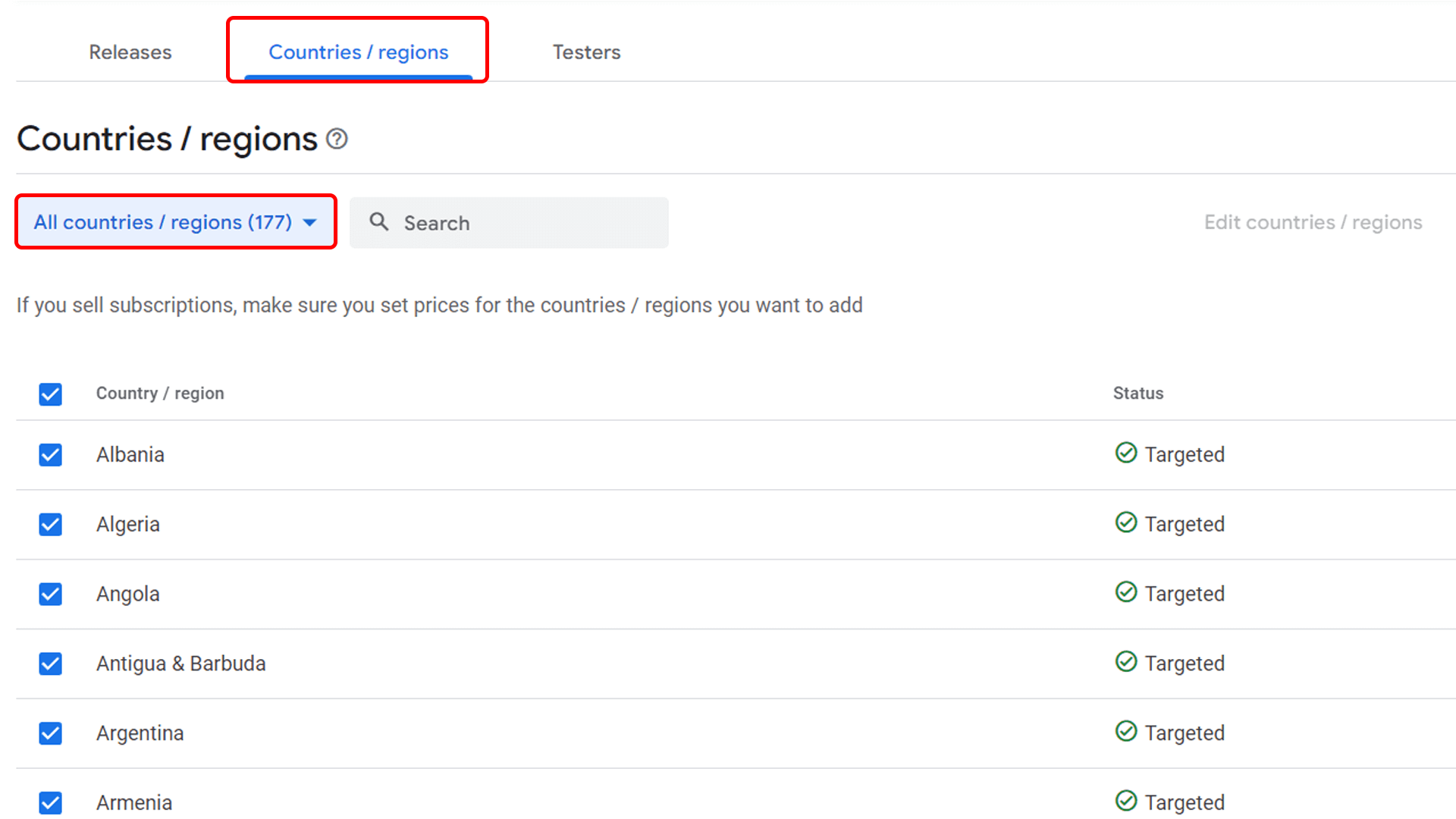
Go to your Google Play Console, navigate to Countries/Regions, select All countries, and save your changes. This allows our global team of testers to access your application without geographical restrictions.
Add the Testing Group
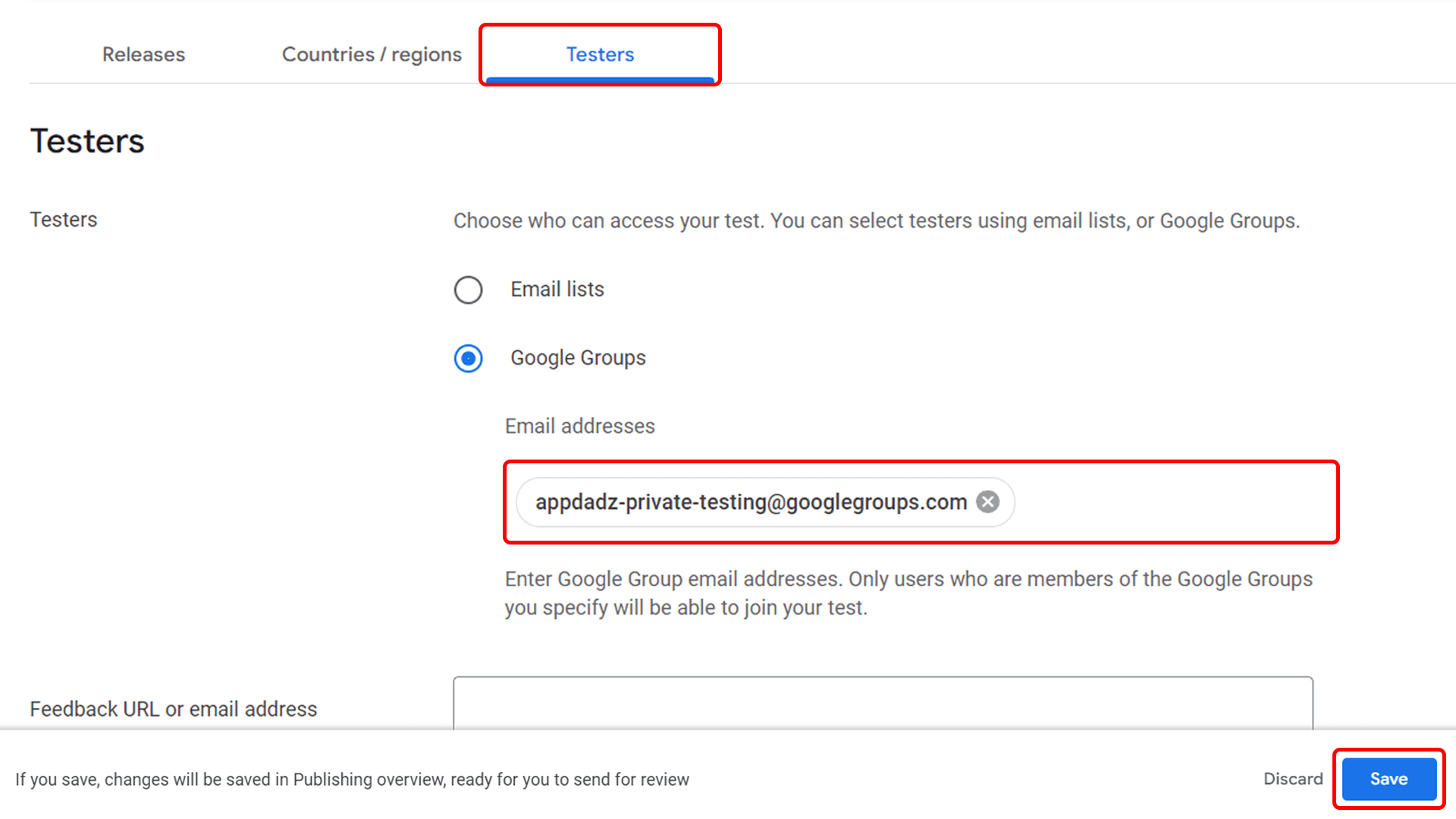
Under Play Console → Test & Release → Testing → Closed Testing, open the Testers section.
Select
Google Groups and add the official AppDadz group:
appdadz-private-testing@googlegroups.com
Final Submission
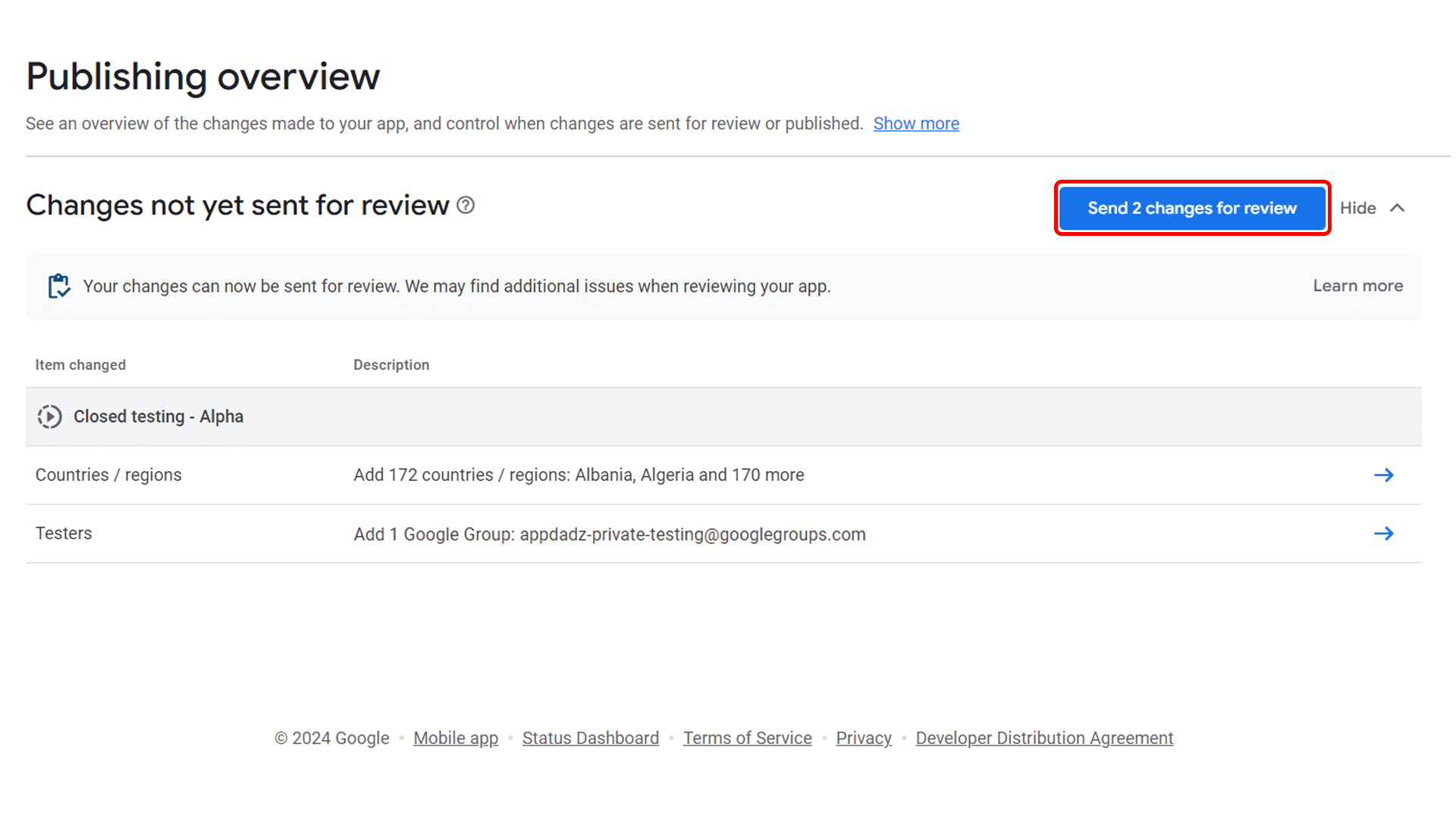
Send Changes for Review
Review your release details and click Send changes for review. Google typically takes 1-3 days to approve the initial test track. Once approved, the 14-day clock for official testing begins.
Share Opt-in Link
After approval, copy the tester opt-in URL from the console. Share this link with your AppDadz account coordinator or upload it via our community app to begin the automated 14-day tracking phase.
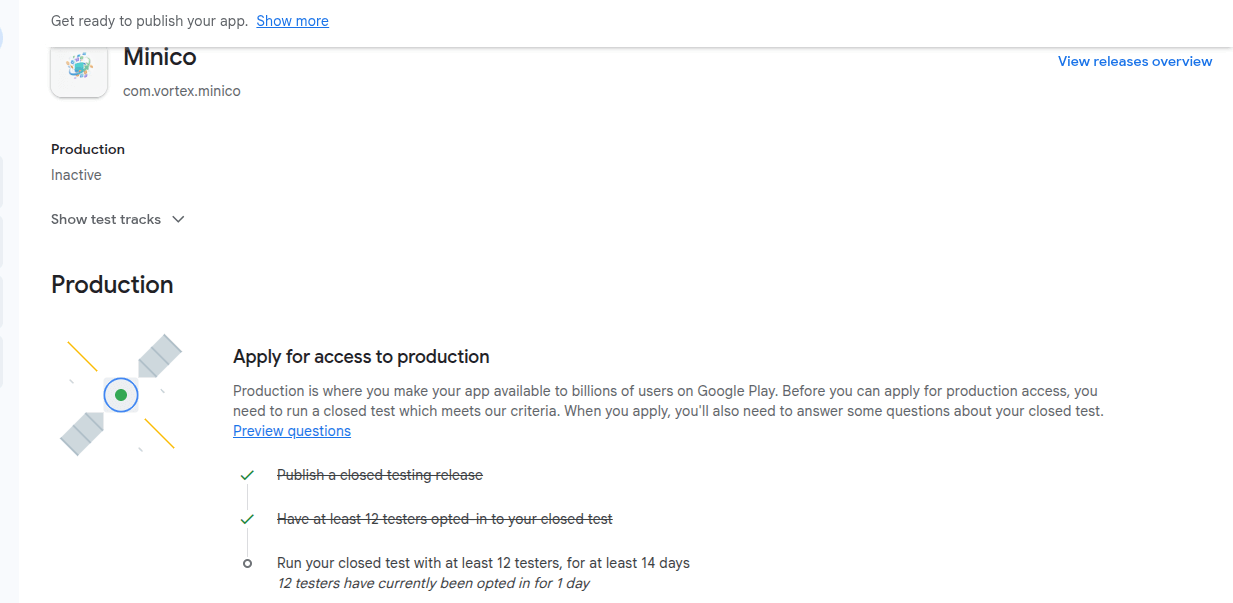
Production Access
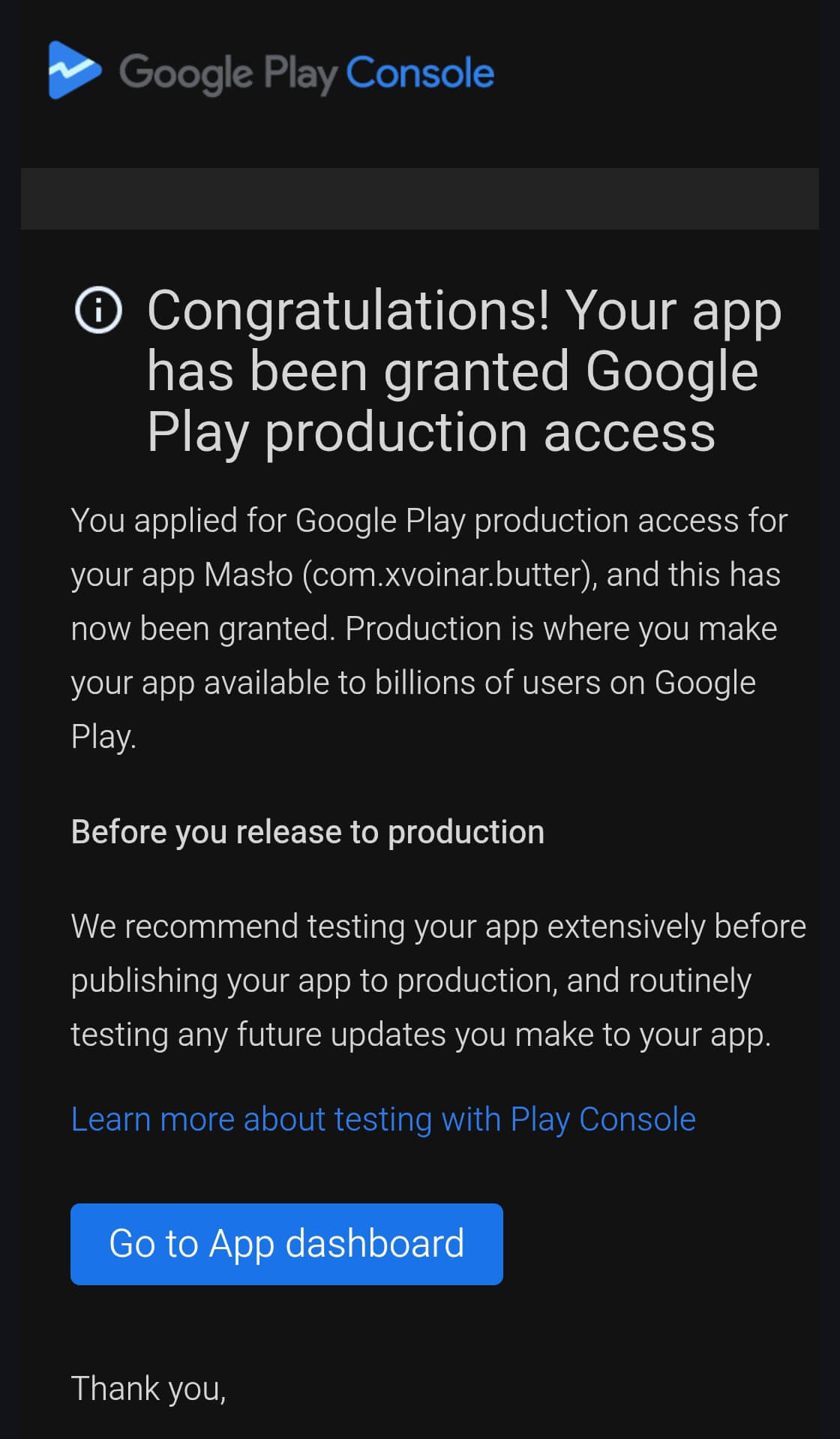
Once the 14-day period is complete, the "Apply for Production" button will activate. Complete the short questionnaire based on the feedback provided by our testers. Our premium plan includes full guidance for this form.
Strategies for Guaranteed Approval
Active Interaction
Our testers don't just "install"—they explore your app, which signals to Google that the app has actual utility and interest.
Detailed Feedback
Use the feedback from our Premium plan to answer Google's questions about "What you learned during testing."
Performance Monitoring
Our testers report crashes on diverse devices, allowing you to fix stability issues before applying for production access.