Inspect Network Traffic with Network Inspector 📡
The Network Inspector in Android Studio displays real-time network activity on a timeline, showing data sent and received. It helps developers examine how and when their app transfers data, enabling optimization of the underlying code. 🚀
Key Features
- Monitor real-time network activity with a timeline view. 📊
- Inspect request and response details, including headers and bodies. 📄
- Create rules to test app behavior under different response conditions. ⚙️
- Support for HttpsURLConnection and OkHttp libraries. 🔗
Accessing the Network Inspector
- From the Android Studio navigation bar, select View > Tool Windows > App Inspection. Select Network Inspector from the tabs. 🖥️
- Select the device and app process in the App Inspection window. 📱
Network Inspector Overview 📊
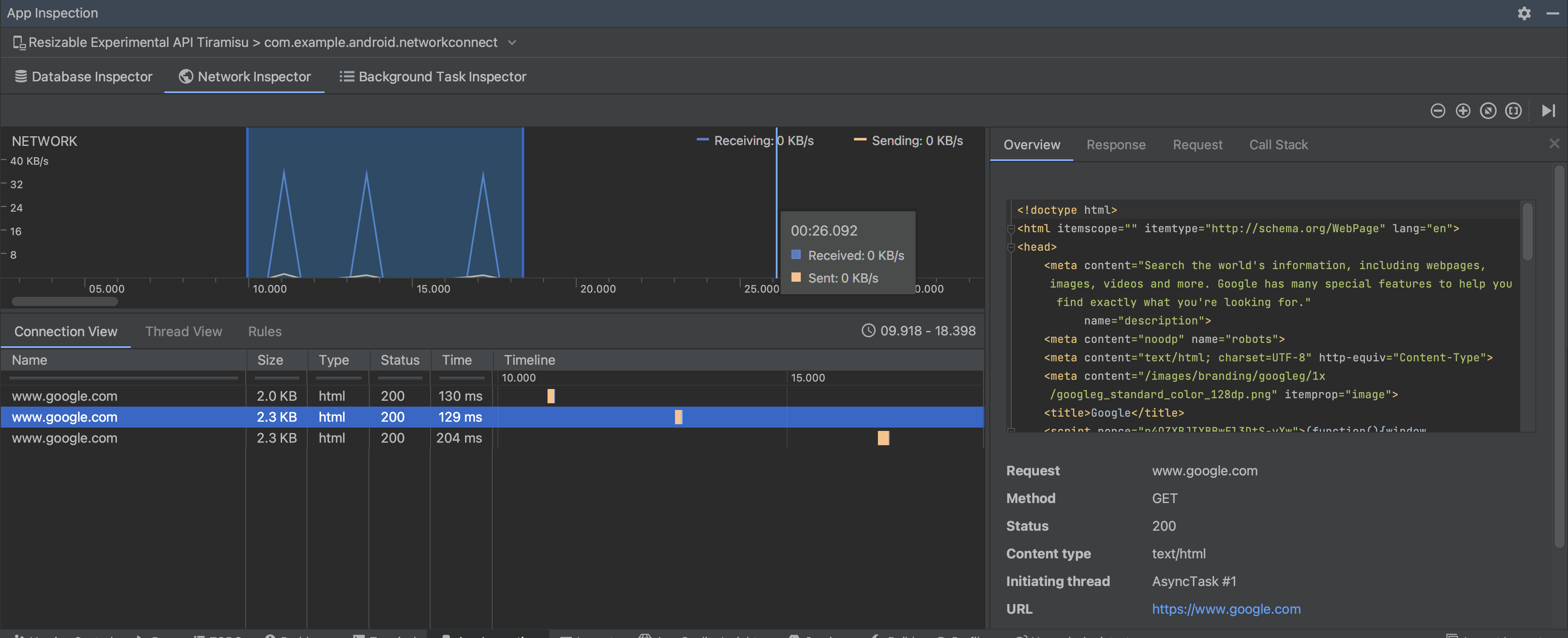
The event timeline at the top of the Network Inspector window allows you to click and drag to select a portion of network traffic for detailed inspection.
Figure 1. The Network Inspector window. 📡
The timing graph in the details pane highlights performance issues: the yellow section marks the first byte sent, the blue section starts with the first byte received, and the blue section ends with the final byte received.
Detailed Views
- Connection View: Lists files sent or received, with size, type, status, and duration. Sort by column headers or view a timeline breakdown. 📋
- Thread View: Shows network activity per CPU thread, identifying responsible threads.
- Rules View: Create rules to test responses with specific status codes, headers, or bodies. Enable/disable rules via the Active box.
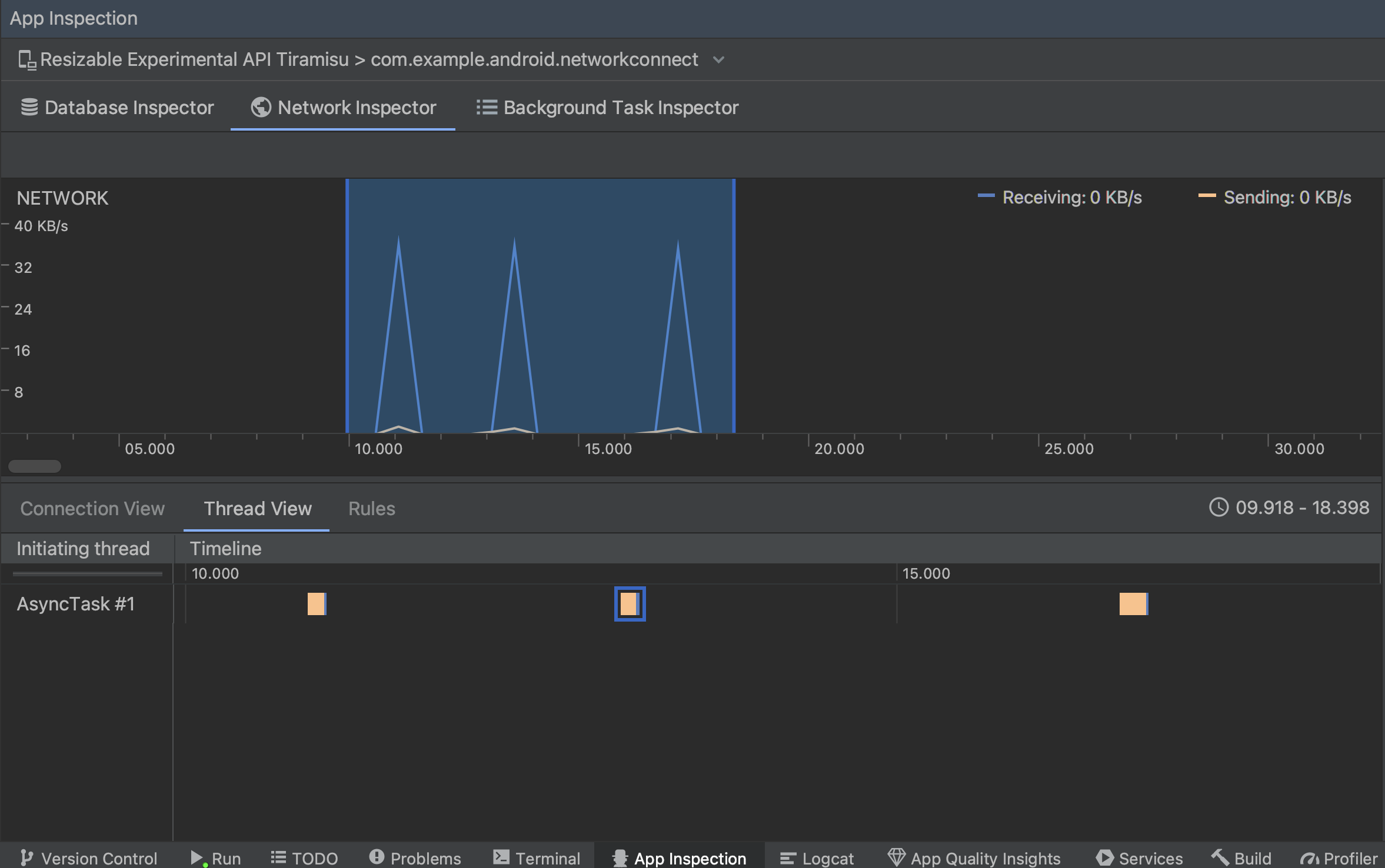
Figure 2. Inspect network requests by app thread in the Thread View. 🧵
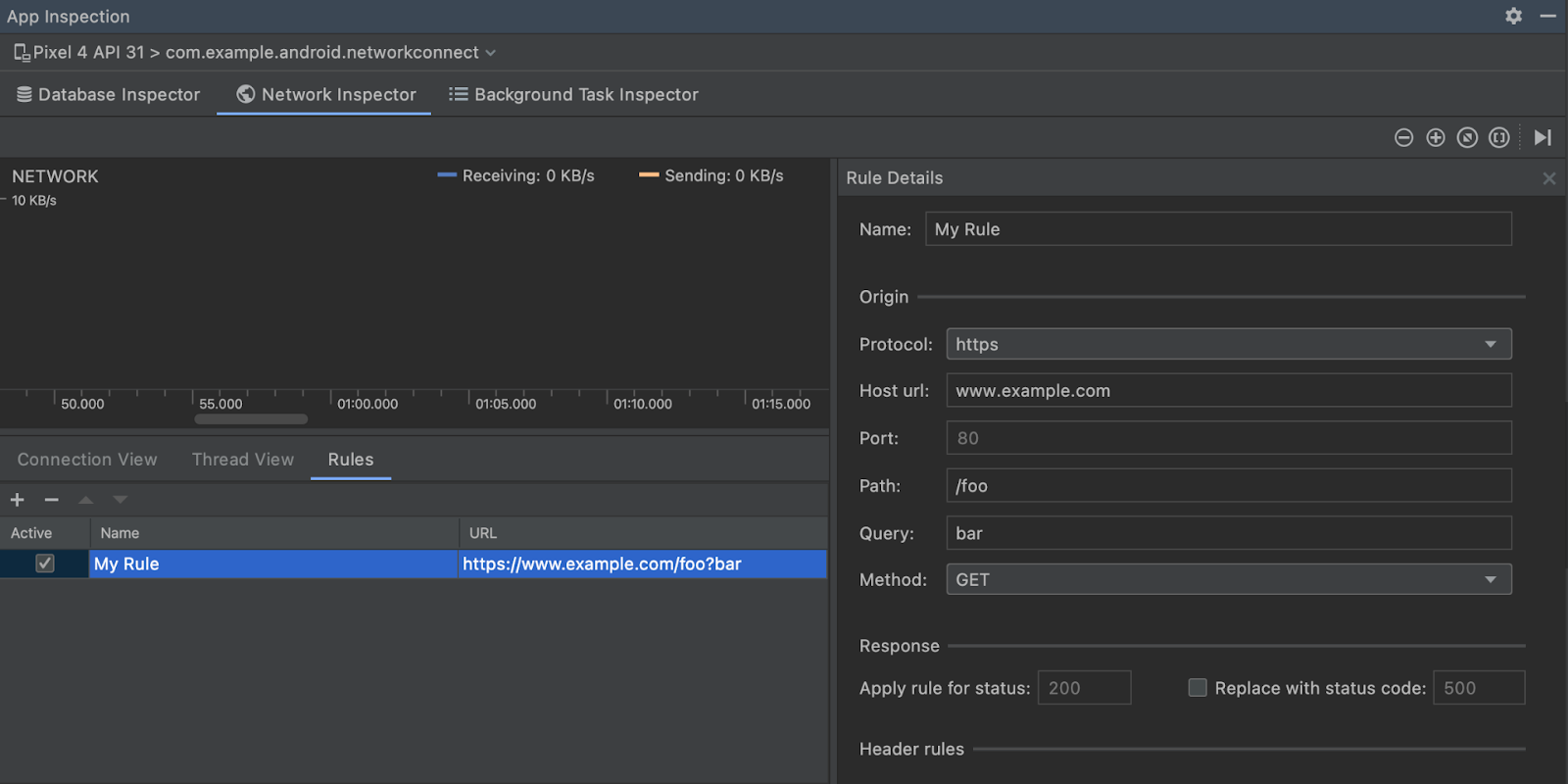
Figure 3. Network Inspector Rules and Rule Details panes. ⚙️
Click a request in Connection View or Thread View to inspect headers, bodies, or call stack. Toggle between View Parsed (formatted) and View Source (raw) text on the Response and Request tabs.
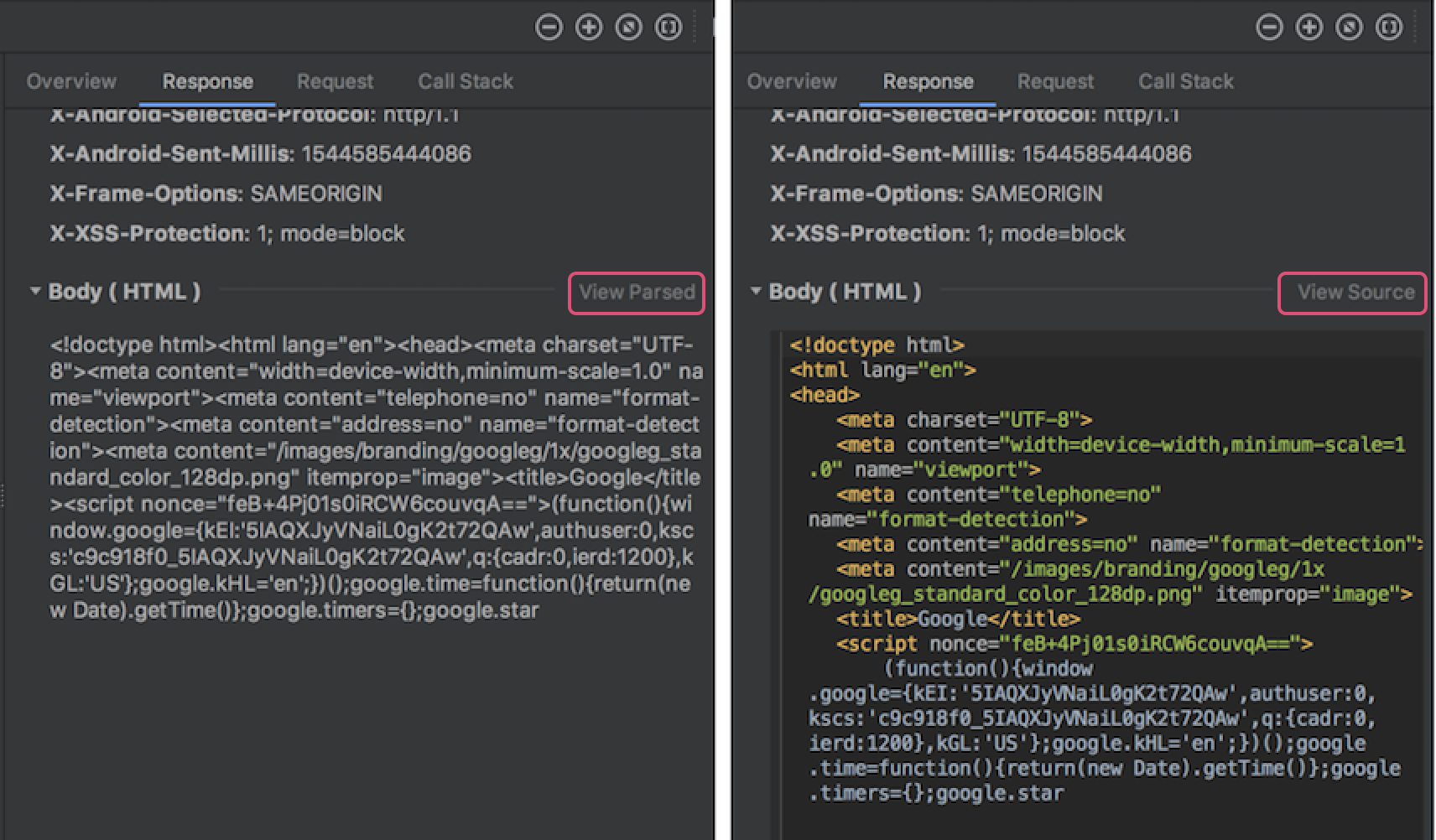
Figure 4. Toggle between raw text and formatted text by clicking the corresponding link. 📄
Supports HttpsURLConnection and OkHttp (used by libraries like Retrofit). Try the Now In Android sample app to see OkHttp in action.
Setting Request Headers 🖥️
For HttpsURLConnection, only headers set via setRequestProperty appear in the Request tab. Example:
val url = URL(MY_URL_EN)
val urlConnection: HttpsURLConnection = url.openConnection() as HttpsURLConnection
...
// Sets acceptable encodings in the request header.
urlConnection.setRequestProperty("Accept-Encoding", "identity")Troubleshoot Network Connection 🔍
If the Network Inspector detects traffic but can't identify supported requests, you see this error:
**Network Inspector Data Unavailable:** There is no information for the network traffic you've selected.The Network Inspector supports only HttpsURLConnection and OkHttp. If your app uses another library, network activity may not appear. If using supported libraries and issues persist, report a bug or search the issue tracker. You can also request support for additional libraries.
Frequently Asked Questions ❓
HttpsURLConnection and OkHttp, including libraries like Retrofit that use OkHttp internally. 🔗